Spooky Season PNG Design: Choosing and Using Halloween Graphics the Right Way
What Is Spooky Season PNG Design?
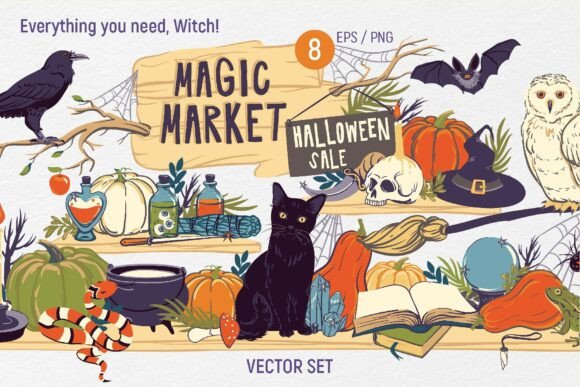
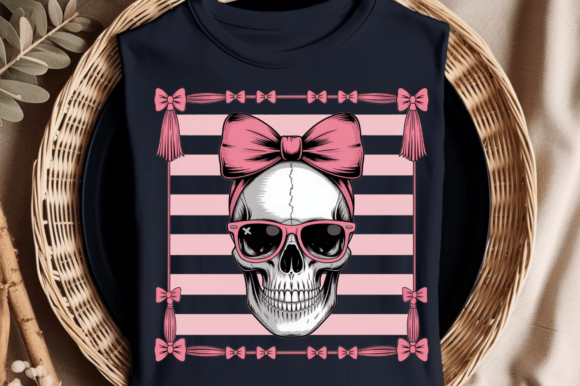
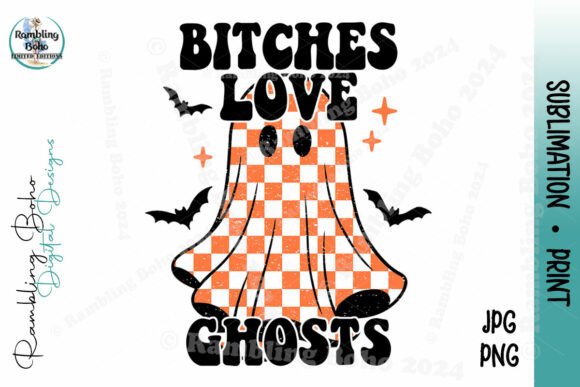
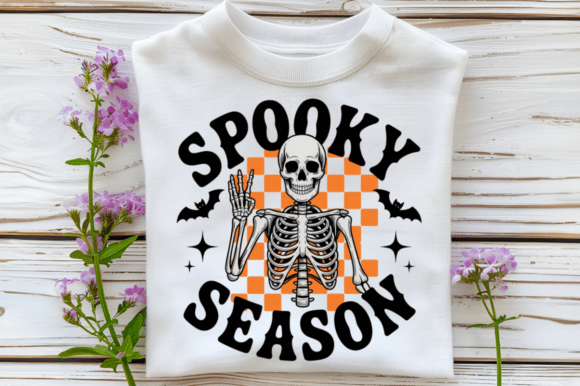
Spooky Season PNG Design refers to high-quality, transparent-background graphics that capture the eerie essence of Halloween and autumn festivities. These include images like pumpkins, haunted houses, witches, bats, spider webs, ghosts, and more. Designed at 2500×2500 pixels with 300 DPI resolution, they're ideal for both digital and print applications. Whether you're crafting T-shirts, designing wall art, or creating stickers and mugs, these PNG files offer flexibility and clarity for a wide range of creative projects.
Common Mistakes When Choosing and Using Spooky Season PNGs
While Spooky Season PNG Design elements can elevate your seasonal projects, many users make avoidable errors that impact the final result. Here are some common pitfalls and how to avoid them:
1. Overlooking File Compatibility
Some users download Spooky Season PNG files without checking if their design software supports transparent-background PNGs. While most modern tools like Adobe Photoshop, Canva, and Illustrator handle this format well, older or basic programs may not display transparency correctly, leading to unexpected white boxes or borders around the image.
Solution: Always verify that your software supports transparent PNG files before starting your project. If not, consider converting the file or using a compatible platform to maintain the design's integrity.
2. Ignoring Resolution Requirements
Even though Spooky Season PNG files are high resolution (300 DPI), some users try to scale them beyond their intended size, which can lead to pixelation or blurry prints. This is especially common when using small graphics for large-format prints like banners or posters.
Solution: Stick to the recommended print size based on the image resolution. If you need a larger format, look for vector versions (like SVG files) that scale without losing quality.
3. Misjudging Color Accuracy
Colors may appear differently on screen than in print due to monitor calibration or printer settings. A vibrant orange pumpkin on your display might print as a muted brown, affecting the overall look of your design.
Solution: Use calibrated monitors and test print small samples before final production. Also, check if the file includes color profiles that match your printing process.
4. Using Too Many Elements at Once
With so many spooky clipart options—ghosts, skulls, witches, bats—it's tempting to use them all in one design. However, overcrowding your layout can make it look chaotic and unprofessional.
Solution: Focus on a cohesive theme and use only a few key elements. Balance is key to maintaining visual appeal and readability, especially for text-based projects like cards or social media posts.
What to Check Before Downloading or Using Spooky Season PNG Designs
To get the most out of your Spooky Season PNG Design files, always verify the following before downloading or applying them:
- License Type: Ensure the files are cleared for both personal and commercial use if you're planning to sell items featuring the designs.
- File Format: Confirm you're receiving a transparent-background PNG and not a JPG or other format that doesn't support transparency.
- Resolution: Check that the 2500×2500 px size is suitable for your intended use, especially for print.
- Zip File Contents: Make sure you have the proper software to extract ZIP files and that all promised graphics are included.
Better Approaches to Using Halloween Spooky PNG Graphics
Instead of rushing into a design, take a step back and plan how each element contributes to your overall project. Here are a few smarter ways to work with Spooky Season PNG Design:
Start with a Theme
Whether it's a haunted forest, a witch's lair, or a candy-filled Halloween night, choosing a central theme helps guide your selection of graphics. This makes your design more cohesive and visually engaging.
Test on Different Backgrounds
Because these PNGs have transparent backgrounds, try placing them on light, dark, and patterned backgrounds to see how they look in different contexts. This is especially helpful for crafting or digital marketing projects.
Layer for Depth
Use multiple PNG elements layered on top of each other to create depth and dimension. For example, place a haunted house in the background with bats flying in front and a spider web in the foreground for a more immersive look.
Keep It Scalable
If you're designing for both print and digital use, consider using vector-based versions (like SVG) alongside your PNGs. This gives you flexibility without compromising quality.
Final Thoughts on Spooky Season Graphics
Spooky Season PNG Design elements are a versatile and valuable resource for anyone looking to create Halloween-themed content. Whether you're a small business owner making seasonal merchandise or a hobbyist crafting decorations, the right graphics can make all the difference. Just remember to approach your design with intention, check technical details before printing, and avoid common missteps that can impact quality and usability.
By understanding what to look for and how to use these files effectively, you'll be able to bring your spooky season vision to life—professionally, efficiently, and creatively.